How to Create a Perfectly Scannable QR Code
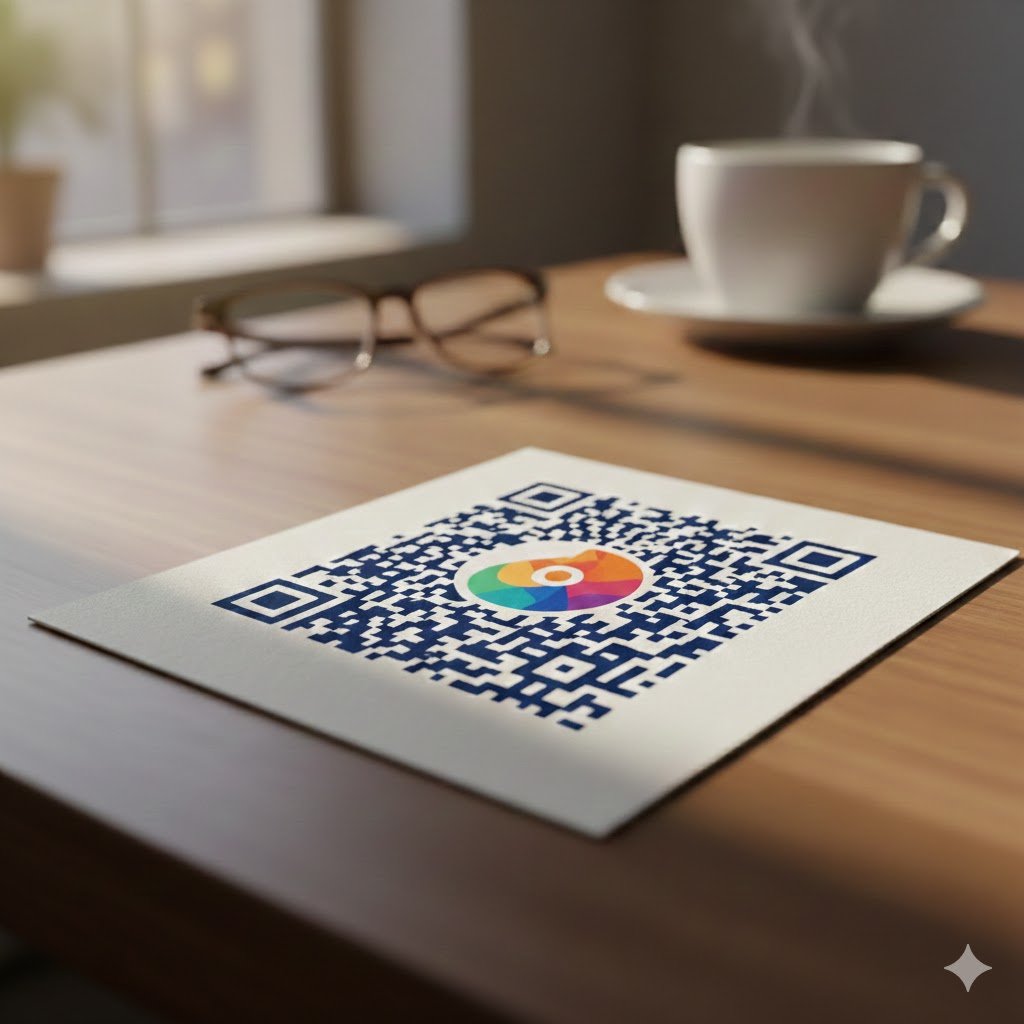
My QR code isn’t working…
You’ve customized your QR code, added your logo, changed the colors… but when you try to scan it, nothing happens. Nothing is more frustrating than a QR code that won’t scan once it’s already printed.
Integrating a logo or a complex design requires a few technical adjustments. Here are our 5 expert tips to ensure your QR code is not only stylish but 100% readable!
1 – Increase the “Error Correction” Level
This is the #1 technical secret. QR codes use redundancy technology, meaning they can be partially damaged or covered and still be readable. The higher the error correction level, the better the code can be read despite visual obstacles.
Why? This allows the scanner to reconstruct the data even if your logo covers part of the patterns.
The Setting: If you add a logo, always choose the Maximum error correction level (available in the General tab of our tool).
2 – Don’t Go Overboard with Logo Size
It’s tempting to make your logo big, but balance is key. A logo that is too large will mask too many data points and make the QR code unreadable. High error correction helps, but only up to a certain point.
The Pro Tip: Start with a small logo and gradually increase its size while testing the scan with your phone.
The Golden Rule: Your logo should not cover more than 25% of the total surface area.
3 – Contrast is Key
A smartphone sensor needs to clearly distinguish the dots from the background. If the colors are too similar, the scanner will fail to pick up the data.
The Solution: Maintain high contrast. If your background is dark, use light-colored dots, and vice-versa. Black on white remains the safest and most reliable choice.
4 – Simplify the Code: Use “Dynamic” QR Codes
The more information you pack into a QR code (like a very long URL), the denser it becomes and the smaller the dots get. A dense code is much harder to print and scan, especially with a logo.
The Solution: Use a Dynamic QR Code. While dynamic codes have a cost (around €35 per year here), they use a very short URL.
The Result: The QR code remains “airy” with fewer dots, making it extremely easy to scan.
Our Advice: Dynamic codes also offer scan statistics and allow you to change the link even after printing. Discover all the benefits here.
5 – Test It (Once or Twice!)
It sounds obvious, but always test before you print!
Test on Screen: Stand back about 2 meters (6 feet) and try to scan it with your mobile device.
Test on Paper: If it works on your screen, print a test version. This is the final step: if it scans on paper, you’re good to go!
Summary: Simplicity First
Creating a QR code with a logo is a great way to boost your brand, but it shouldn’t come at the cost of functionality. By keeping high contrast, a reasonable logo size, and the right error correction level, you ensure a seamless experience for your customers.
Remember: if your design feels too complex, the Dynamic option is your safety net. It keeps the QR code design simple and gives you peace of mind.
Ready to create yours? Go to our QR Code Generator!